DbUtil - Application for converting data between SQL databases such as MSSQL, ORACLE, MYSQL, INTERBASE, FIREBIRD.
In this section of the website you can download the current version of the DbUtil application.
DbUtil is application for converting data between SQL databases such as MSSQL, ORACLE, MYSQL, INTERBASE, FIREBIRD.
1. INTRODUCTION
2. CREATING A DATABASE CONNECTION
3. DATA CONVERSION BETWEEN DATABASES
4. SAVE CONFIGURATION
5. LANGUAGE MUTATION
6. SERVICE AND ADVICE
7. DbUtil DOWNLOAD
1. INTRODUCTION
This is an application for converting data between SQL databases.
It allows data transfer between databases such as MSSQL, ORACLE, MYSQL, INTERBASE, FIREBIRD.
The program works on any computer with Microsoft WINDOWS 10 installed.
The program does not need to be installed, it is delivered in a zip archive and after unpacking it can be run as an exe file. The name of the exe file is DbUtil_XE7.exe .
2. CREATING A DATABASE CONNECTION
After running the DbUtil_XE7.exe application, the Data Transfer initial window will open. There we click on the "
Add new server" button, more image below.
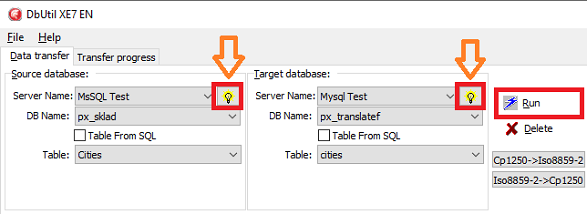
A window with the settings of each connection to the database should open, more image below. There we press the "
+" button and start entering the following parameters:
Server name – only the informational name of the server under which we will run this connection
Server address – The name of the server, or its IP address, on which the database is installed. On a local computer, just enter "localhost" for the MySQL server. For example, for MSSQL server we can enter "PC_LENOVO\SQL_SERVER".
Driver Name – here we enter the type of database from the default list. These are the following databases: MSSQL, ORACLE, MYSQL, INTERBASE, FIREBIRD.
Username – here we enter the login name to the database, for MySQL it can be "root", for IB/FB it can be "SYSDBA"
Password – here we enter the login password to the database, for IB/FB it can be "masterkey"
Path + Filename to IB/FB database – this item is only filled in for Interbase/Firebird servers. Here you enter the path and file name to the IB/FB database file. Typically, this path is: „
c:\Program Files\Embarcadero\InterBase\DB\IB_DB.IB“.
If we have all this entered, we can confirm it with a post button and send the data to the database. Using the "Test" button, we can test whether the connection is functional and whether we can connect to the database with it.
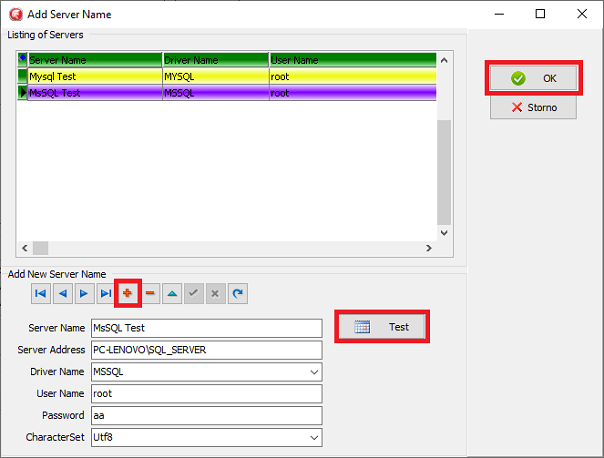
In the server list, select an individual server and use the "
Ok" button to transfer this selection to the "
Server name" item in the initial window.
3. DATA CONVERSION BETWEEN DATABASES
After running the DbUtil_XE7.exe application, the Data Transfer initial window will open. In the left part of the window, we set the parameters for the source database and in the right part for the target database, see the image below.
We set the following parameters for both the left and right sides:
Server name – here we select from the combobox, a previously set connection to the server, more in the previous chapter
DB Name – select the database name from the combobox. The menu should contain a list of all accessible databases on the servers
Table – here we select a table from the combobox, or we can check the "
Table from SQL" option. If you check the "
Table from SQL" option, a window will open on the right for entering the SQL command. We open or run this command via the "
Open SQL" button.
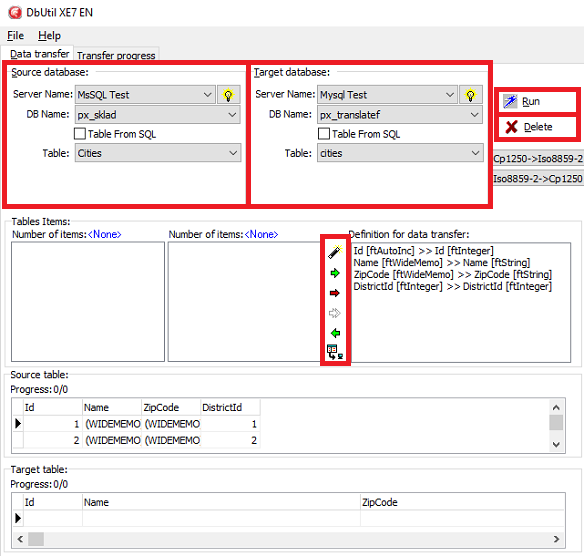
If we filled in the above parameters correctly, then the section called "
Table items" should be filled in.
Next, we assign each field of the target table to a field of the source table. The options are as follows:

– insert all fields with the same name and type, magic wand

– insert a field with a different name and the same type

– insert a field with a different name and type

– cancel the definition for the transfer

– add expression
Once this is done, we can start the data transfer from the source to the target database by clicking the "
Start" button.
4. SAVE CONFIGURATION
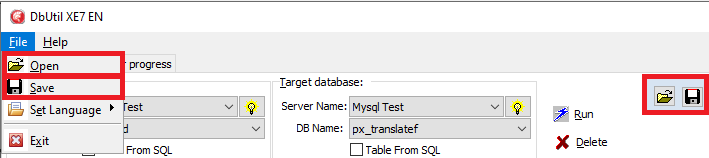
If we want to save the parameters of the source and target databases for later use, we can do so by pressing the "
Save configuration" button. After restarting the application, we can restore the configuration via the "
Open configuration" button. These buttons are located in the upper right corner, or we can access them through the main menu "
File-> Save" or "
File-> Open". Saving the configuration saves the following parameters:
Server Name, DB Name, Table, SQLText for the table, and Tables Items for both the source and target databases.
5. LANGUAGE MUTATION
The application contains a total of two language mutations. And these are English and Slovak. We can select individual language mutations by clicking on the flags in the upper right corner, or by selecting from the main menu "
File-> Set Language-> English/Slovak".

6. SERVICE AND ADVICE
Service and advice are provided by the program manufacturer.
7. DbUtil DOWNLOAD
In this section of the website you can download the current version of the DbUtil application. DbUtil is application for converting data between SQL databases such as MSSQL, ORACLE, MYSQL, INTERBASE, FIREBIRD.
Date of last upgrade: 17.02.2026



